Dokploy: The Open-Source Deployment Platform We Switched To (And Never Looked Back)
We migrated Pixel Logic Team's entire infrastructure to Dokploy after hitting walls with Coolify. Here's what Dokploy is, why it works, and how to get started.


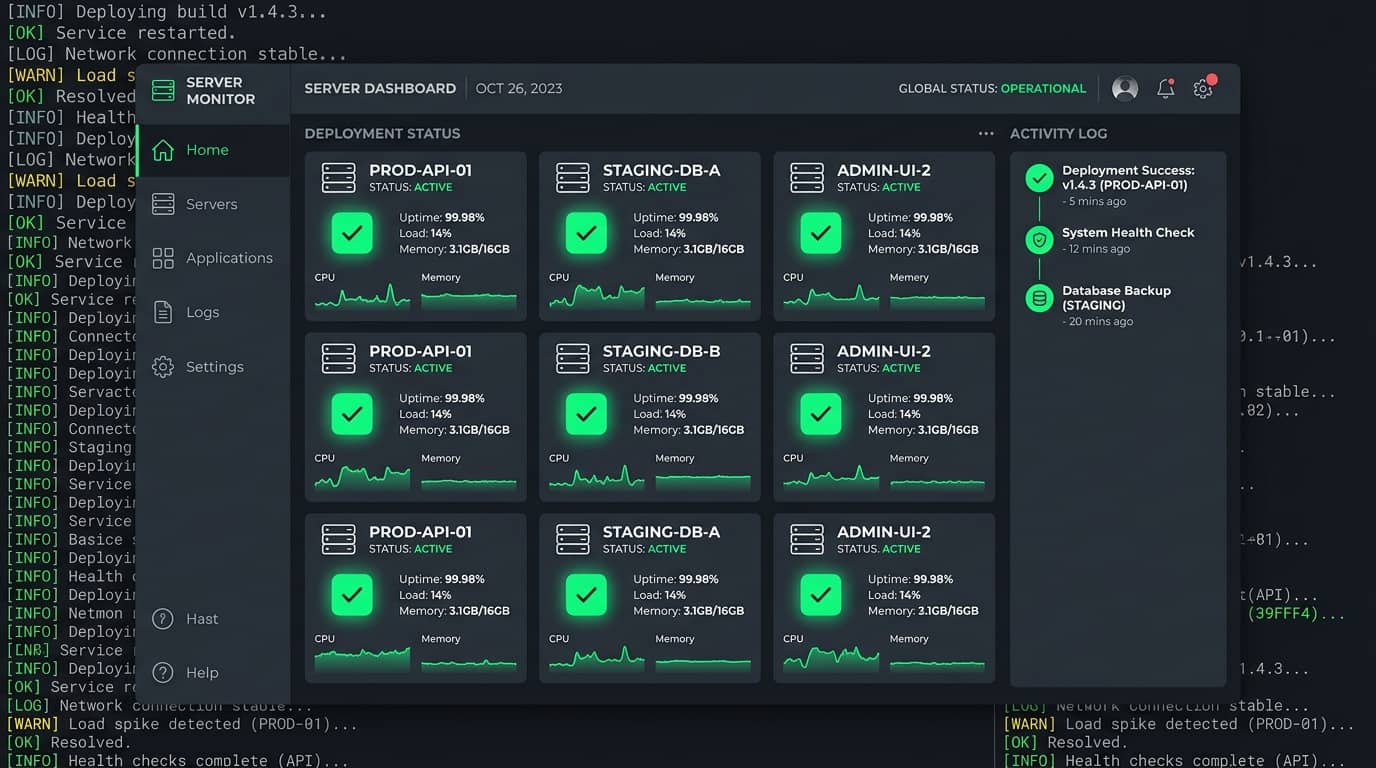
If you've ever tried to self-host a production SaaS and ended up debugging why your Docker Compose volumes aren't mounting correctly at 2am — this post is for you.
At Pixel Logic Team, we spent weeks trying to make Coolify work for our infrastructure. It didn't. We switched to Dokploy, and it fixed nearly every problem overnight. We now run our entire stack on it in production — a Next.js control plane plus a fleet of per-client server-side tracking containers — and we haven't looked back.
Here's everything we learned: what Dokploy is, how it's built, why it succeeded where Coolify failed us, and exactly how to get it running on your own server.
What Is Dokploy?
Dokploy is an open-source, self-hostable Platform-as-a-Service (PaaS) that lets you deploy applications, databases, and Docker Compose stacks from a clean web dashboard — running entirely on a VPS or bare-metal server you own.
Think of it as a self-hosted alternative to Railway, Render, Vercel, or Heroku, but with no vendor lock-in, no per-seat fees, and no per-deployment platform tax. You pay for the server; that's it. For teams with data-residency or compliance requirements the appeal is bigger still: your code and databases never leave your own infrastructure.
It's free and open-source. If you'd rather not run the control plane yourself there's a managed Dokploy Cloud option, but the whole point — and what we use — is the self-hosted version. You can find it at dokploy.com.
What You Get Out Of The Box
A lot, for a single command's worth of setup:
- Applications in any language — Node.js, Python, Go, PHP, Ruby — built from a Git repo, a Dockerfile, or zero-config Nixpacks.
- Databases with first-class support for PostgreSQL, MySQL, MariaDB, MongoDB, Redis, and libSQL.
- Docker Compose deployments for multi-container apps — the feature that mattered most to us.
- Automated backups of databases to external (S3-compatible) storage.
- One-click templates for popular open-source tools — Plausible, PocketBase, Cal.com, n8n, and dozens more.
- Automatic HTTPS via Traefik and Let's Encrypt, plus real-time monitoring of CPU, memory, disk, and network per service.
- An API and CLI alongside the dashboard, so you can script deployments once you outgrow clicking buttons.
Why We Left Coolify
Coolify has a great community and a genuinely nice UI, and for simple single-container apps it works fine. But it abstracts Docker Compose in ways that quietly break standard behavior — and "quietly" is the dangerous part. The problems we hit, in order of how much time they cost us:
- Docker Compose variable substitution didn't resolve the way the spec says it should. Standard
${VAR}interpolation came out wrong or empty depending on where the variable was defined. This was the dealbreaker: when you can't trust your environment variables, you can't trust anything downstream of them. - Traefik label overrides were silently ignored. We'd set routing labels on a service, deploy, and find nothing had taken effect — no error, no warning, just routing that didn't match what we'd written.
- Redeployments sometimes reset environment variables. A redeploy that should be a no-op for config would occasionally wipe values — the kind of thing that turns a one-line change into an hour of forensics.
None of these is damning on its own. Together, on a stack where correctness of the data plane is the entire product, they made Coolify untenable for us. The common thread: too much magic between the compose file we wrote and the containers that actually ran.
Dokploy's pitch is the opposite. It respects your docker-compose.yml as written, shows you the exact command and the exact processed file it's about to run, and gets out of the way. No surprises.
How Dokploy Is Architected
Understanding what the installer actually does makes everything else less mysterious — and makes debugging far easier when something goes wrong.
When you run the install script, Dokploy:
- Installs Docker if it isn't already present.
- Initializes Docker Swarm on the host (single-node by default), advertising your server's IP so you can later add worker nodes if you want to scale horizontally.
- Deploys its own core services as Swarm services: the Dokploy UI, a Traefik reverse proxy, a PostgreSQL database for Dokploy's own state, and Redis.
So the orchestration layer is Docker Swarm and the ingress layer is Traefik. Traefik terminates TLS, provisions Let's Encrypt certificates automatically, and routes incoming requests to the right container by hostname. Your apps get zero-downtime deploys because Dokploy swaps containers behind Traefik — the old container keeps serving until the new one passes its health check.
One practical consequence to internalize early: ports 80 and 443 belong to Traefik. Don't bind 80:80 or 443:443 in your own compose files. Instead, expose your app's internal port and let Traefik route to it via labels (more below). Fighting Traefik for those ports is the single most common reason a first Dokploy deploy doesn't come up.
Installing Dokploy
Before You Run Anything
Dokploy needs a Linux host — Ubuntu 22.04 or 24.04 is the well-trodden path, and it's what we run on a Hetzner VPS. A couple of hard requirements:
- The script must run as root on Linux. It refuses to run on macOS or inside a container.
- Ports 80, 443, and 3000 must be free. The installer checks them and aborts if anything is already listening. Port 3000 is the dashboard; if you've got a stray Node app on 3000, stop it first.
If you use UFW, open the ports you need before you lock the box down — and always allow SSH first so you don't lock yourself out:
ufw allow 22/tcp     # SSH — allow this FIRST
ufw allow 80/tcp     # HTTP
ufw allow 443/tcp    # HTTPS
ufw allow 3000/tcp   # Dokploy dashboard (temporary)
ufw --force enable
The One-Line Install
This is the whole thing:
curl -sSL https://dokploy.com/install.sh | shIt pulls the latest stable release, installs Docker if needed, sets up Swarm, and brings up the core services. It takes roughly five to ten minutes. When it finishes, open http://YOUR_SERVER_IP:3000 in a browser and you'll land on the setup page to create your admin account.
To track the bleeding edge instead of stable:
export DOKPLOY_VERSION=canary && curl -sSL https://dokploy.com/install.sh | shAnd to update an existing install later:
curl -sSL https://dokploy.com/install.sh | sh -s updateFirst Login
Create your admin account immediately — the dashboard sits on a public port until you put it behind a domain, so don't leave a fresh instance open. From there you create a project, then add services to it (an application, a database, or a Compose stack).
Routing With Traefik And Custom Domains
For most services the easiest path is Dokploy's built-in Domains UI: type the hostname, pick the internal port, and Dokploy injects the correct Traefik labels into your compose file for you. There's even a Preview Compose button so you can see exactly what it's going to add before it deploys.
If you'd rather configure routing by hand — the advanced path, and the one that gives you full control — the labels for a Docker Compose service look like this:
services:
  myapp:
    image: myorg/myapp:latest
    expose:
      - "3000"
    networks:
      - dokploy-network
    labels:
      - "traefik.enable=true"
      - "traefik.docker.network=dokploy-network"
      - "traefik.http.routers.myapp.rule=Host(`app.yourdomain.com`)"
      - "traefik.http.routers.myapp.entrypoints=websecure"
      - "traefik.http.routers.myapp.tls.certresolver=letsencrypt"
      - "traefik.http.services.myapp.loadbalancer.server.port=3000"

networks:
  dokploy-network:
    external: true
Two details here trip up almost everyone the first time:
- The service must join
dokploy-network, declared as an external network at the bottom of the file. Traefik runs on that network; by default Docker Compose puts your service on its own isolated network where Traefik can't see it. - The
traefik.docker.network=dokploy-networklabel is not optional. The first line attaches your container to the shared network; this label tells Traefik which network to route through. You need both — having one without the other is the classic "labels look right but the site 404s" failure.
Two more gotchas from production:
- Point your DNS at the server before you add the domain in Dokploy. Let's Encrypt validates against the live DNS record; if the domain isn't resolving when you add it, the certificate won't issue and you'll have to recreate the domain or restart Traefik. We run Cloudflare for DNS and make our record changes idempotent — check before create — precisely so this step stays boring.
- Don't set
container_nameon your services. Dokploy relies on its own naming for logs, metrics, and health checks, and a hardcodedcontainer_namebreaks them.
If you're on the Swarm/Stack deployment type rather than plain Compose, the same labels go under deploy.labels and you use traefik.swarm.network instead of traefik.docker.network. Same idea, different placement.
Deploying A Docker Compose Stack
This is where Dokploy earned its place for us. Our data plane is a set of per-client containers defined in Docker Compose, and the thing Coolify got wrong — environment variables and label handling — is exactly the thing Dokploy gets right.
A few principles that keep Compose deploys clean:
- Use
expose, notports, for anything Traefik fronts. Binding host ports invites collisions, and Docker reassigns random host ports on every redeploy unless you pin them. If you genuinely need a stable external port (say, connecting a database client directly), pin it via an environment variable rather than hardcoding it, so it survives redeploys. - Let environment variables interpolate. Dokploy resolves
${VAR}the way the Compose spec intends, with a documented three-level resolution order, so${VAR}means what you think it means. - Use "Show Command" to see what actually runs. Under the hood a deploy is just
docker compose -p <project> -f docker-compose.yml --env-file .env up -d --build. Being able to read that exact command — instead of guessing what the platform did — is what makes Dokploy trustworthy for production.
For us the payoff was concrete: the first-party tracking stack we run for clients spins up reliably, the routing matches the labels we wrote, and a redeploy doesn't silently mutate config out from under the running service.
Hardening Your Install
A default install is functional but not locked down. Before you call it production:
- Put the dashboard on a domain and close port 3000. Under Settings → Web Server you can give Dokploy itself a subdomain (use a dedicated one, not your apex). Once that domain works over HTTPS, remove the public IP:port access:
docker service update --publish-rm "published=3000,target=3000,mode=host" dokploy- Restrict SSH. Limit port 22 to your own IP range rather than the whole internet, and use keys, not passwords.
- Turn on database backups. Point them at off-box storage so a dead VPS isn't a dead business.
- Keep the host patched. A monthly
apt update && apt upgradeand an eye on disk usage is most of the maintenance burden — the trade-off you accept in exchange for not paying a managed platform.
Was It Worth It?
For us, unambiguously yes. We traded a small amount of ongoing server maintenance for predictable, inspectable deployments, a meaningful drop in cost, and — more importantly — an infrastructure layer we actually trust. When the platform shows you the exact compose file and the exact command it's about to run, debugging stops being archaeology.
Dokploy is the right tool if you want the Heroku/Vercel developer experience on hardware you control, you're comfortable living with Docker and a Linux box, and you'd rather own your infrastructure than rent someone else's opinion of it. If you want zero maintenance and never want to touch a terminal, a managed cloud is still the better fit — or Dokploy Cloud as a middle ground.
We came for an escape from Coolify's surprises. We stayed because Dokploy does the boring thing: it runs what we wrote.
Server-side tracking insights, in your inbox
Case studies and engineering deep-dives — a few emails a year, no noise.
No spam. Unsubscribe any time with one reply.
Related posts
Why Our GTM MCP Server Logged Out Every 30 Minutes
A hosted MCP server dropped our session every 30 minutes. Running it ourselves fixed it - and revealed three Google OAuth traps nobody documents.

How to Fix Typeform iFrame for Google Ads Enhanced Conversion Tracking
Missing out on high Event Match Quality Scores (EMQS) due to trapped iFrame data? When first-party data is hidden inside an embedded Typeform, your Meta Pixel and Conversions API lose the critical signals needed for Enhanced Conversions. In this technical deep-dive, we show you how to engineer a lightweight cross-domain tracking bridge using Google Tag Manager and postMessage. Discover how to securely pass isolated lead parameters directly into the parent domain's local storage and data layer—in